Invoice Saathi

Help centre

How to import your item list from Excel or CSV

Do not retype your catalogue. Paste it.

Open Import

In the menu tap Import, then Import items.
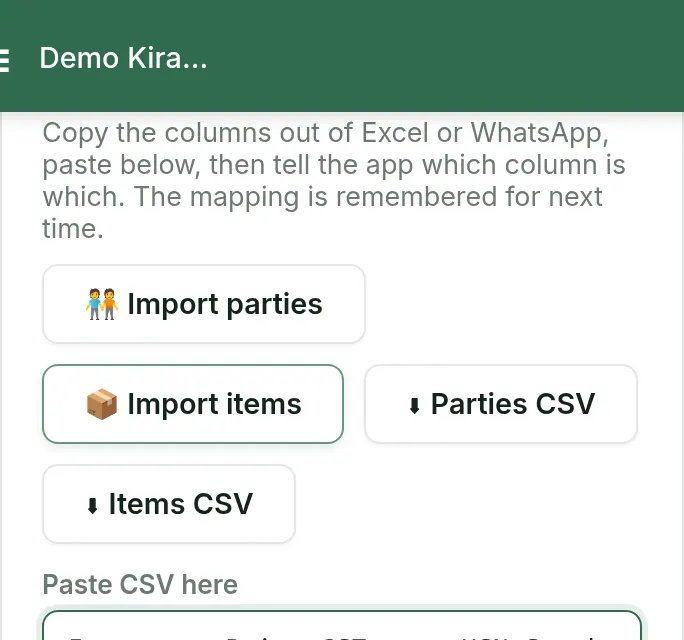
Import screen with the Import items button selected and the paste box below it

Paste your list

Copy the rows from Excel, with a header row on top, and paste into the box. The columns are Item name and Price (required), then GST rate, Stock qty, HSN/SAC, Unit and Low stock at if you have them.

Match the columns

Tell the app which column is which. The preview shows the first rows. The matching is remembered for next time.
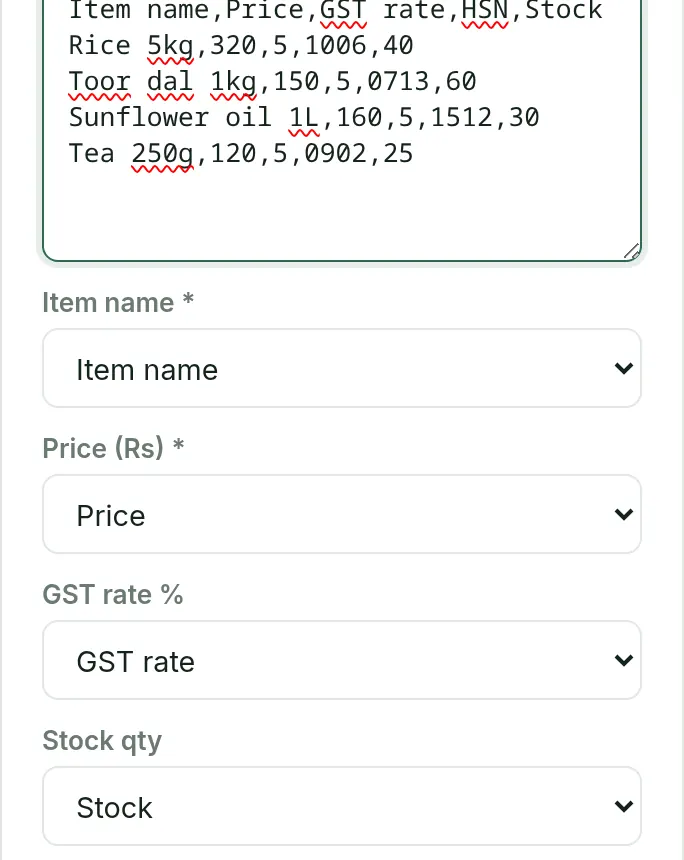
Column matching for an item import: item name, price, GST rate, stock and HSN

Tap Import

The app tells you how many items it imported and shows the first problem row if any were skipped.

Good to know

  • Customers import the same way with Import parties.
  • Reading items from a photo or PDF is not available yet.

FAQ

Common questions

Which columns do I need?
Item name and Price are required. GST rate, Stock qty, HSN/SAC, Unit and Low stock at are optional.
Can I import HSN codes and stock?
Yes. Include HSN/SAC and Stock qty columns and match them in the preview.
What if some rows fail?
The app tells you how many items it imported and shows the first problem row if any were skipped.
Is the column matching remembered?
Yes. The matching is remembered for the next import.

Free to start, INR 2,500 or INR 5,000 a year.

Start free